Skip to content
Shenzhen Cylan Technology Co., Ltd.
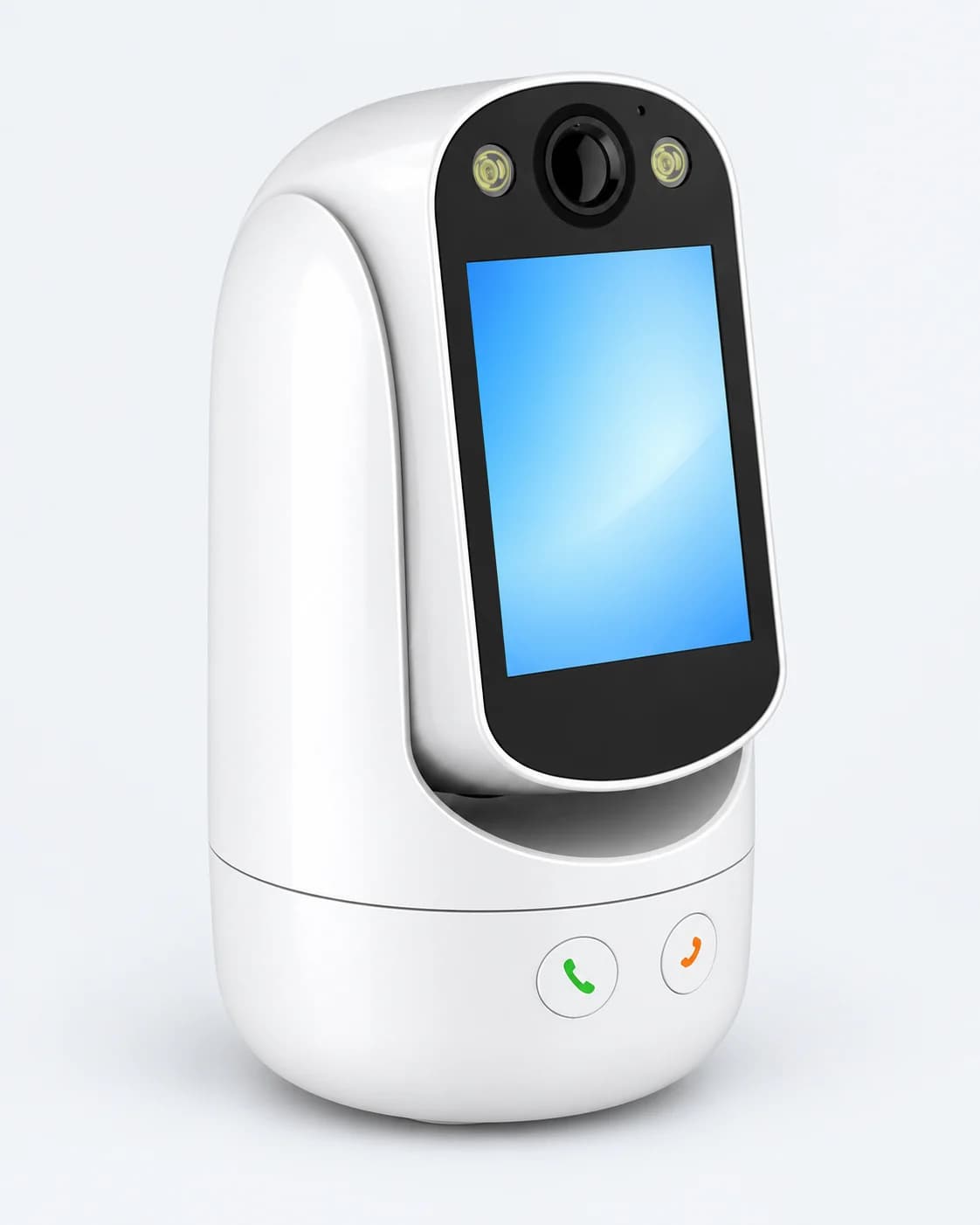
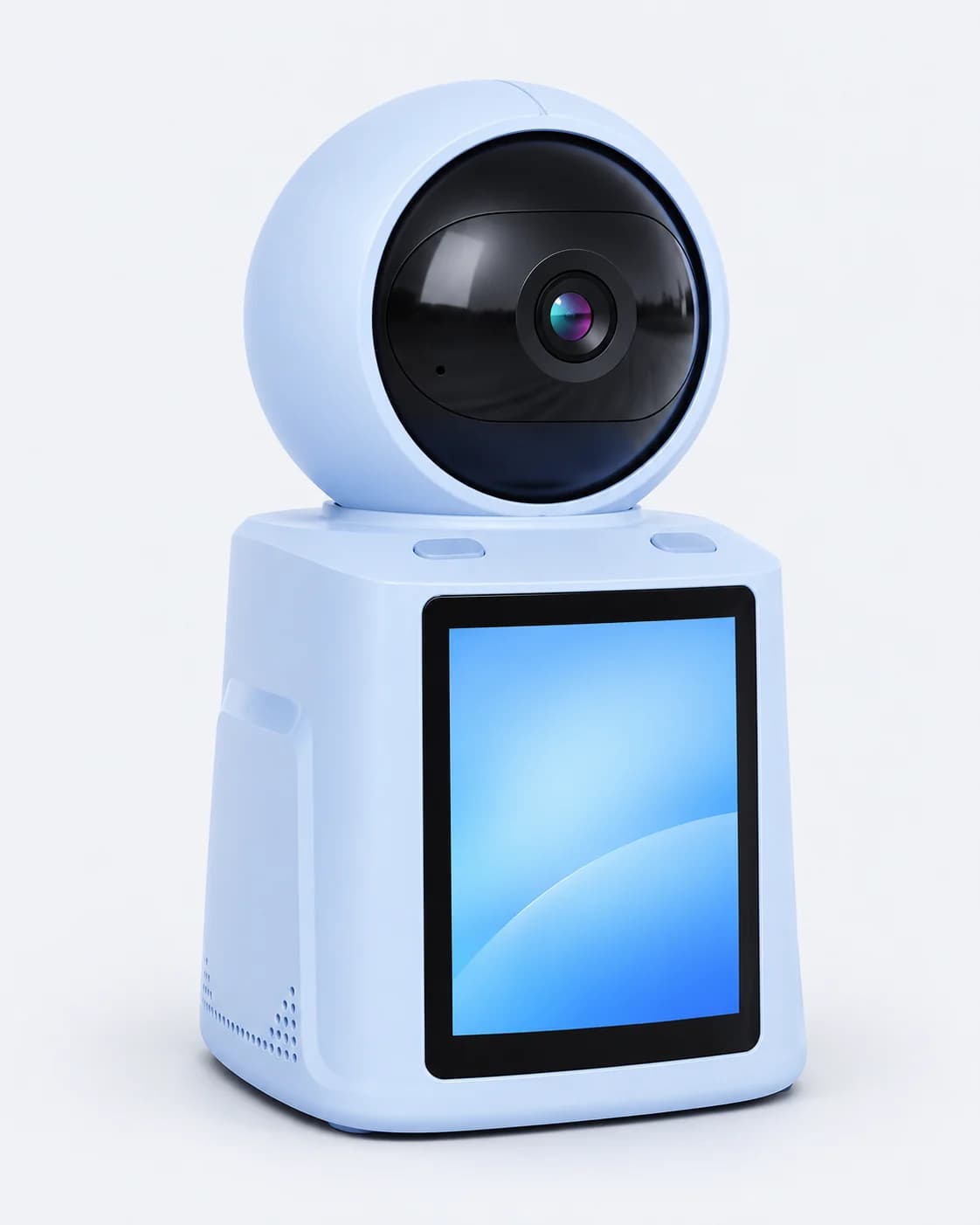
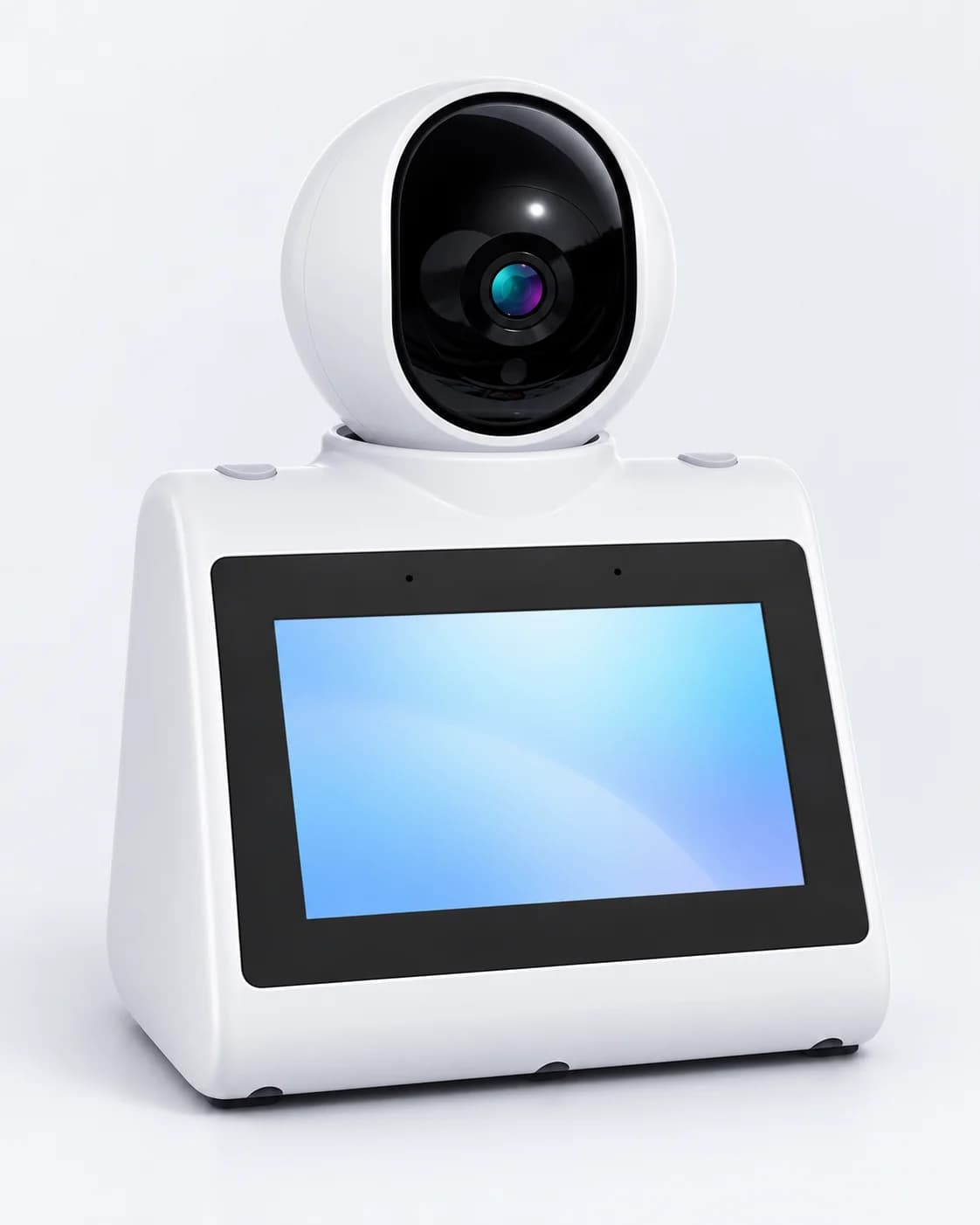
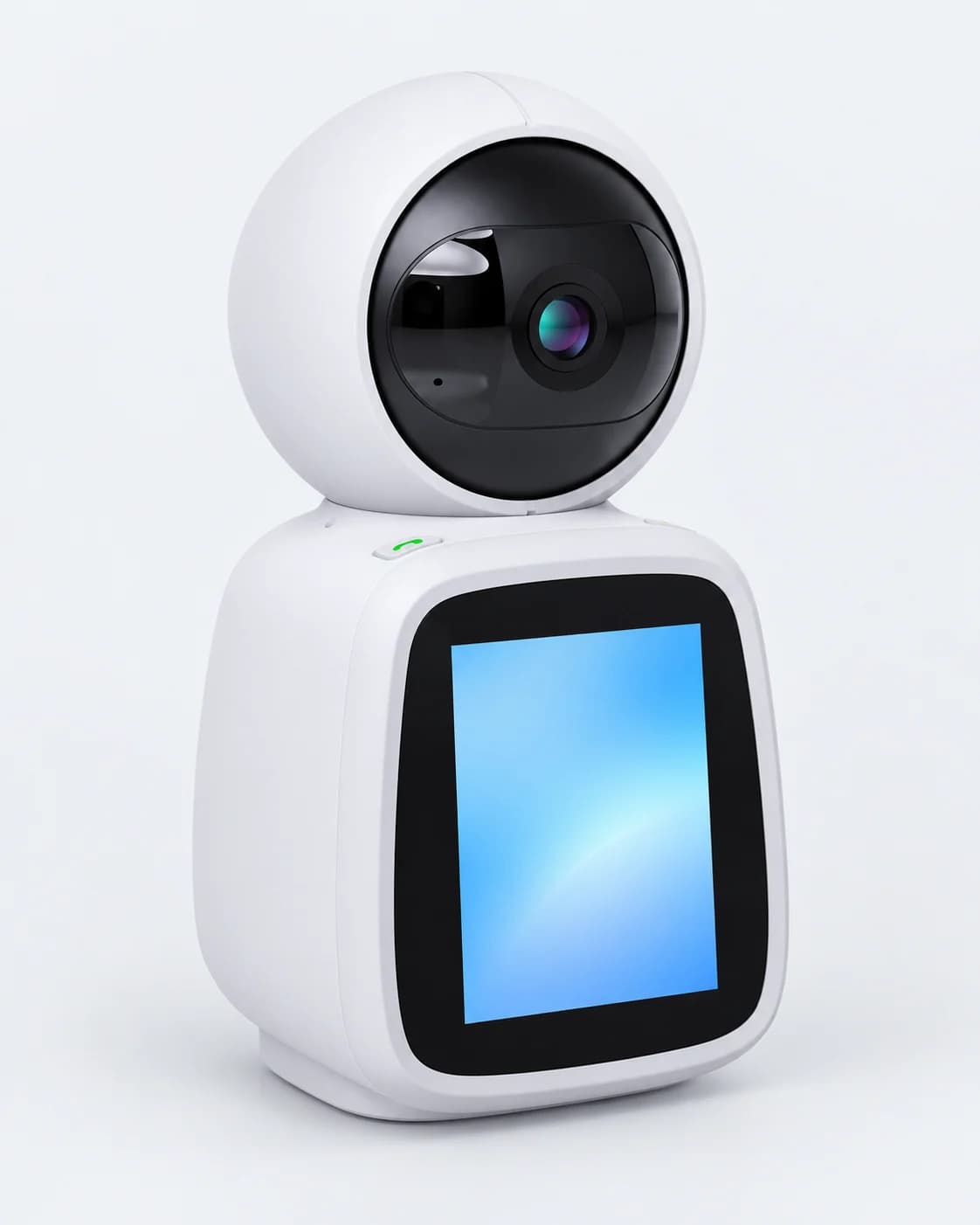
Front view of the IM CAM C31 video call camera

C31

IM CAM Video Call Camera C31

Communicate and protect, anytime, anywhere

A two-way video-call camera with a screen. One press calls family, with smart human detection, HD infrared night vision and alarm alerts.

Highlights

  • 1080p HD video calls
  • One-press calling
  • Infrared night vision
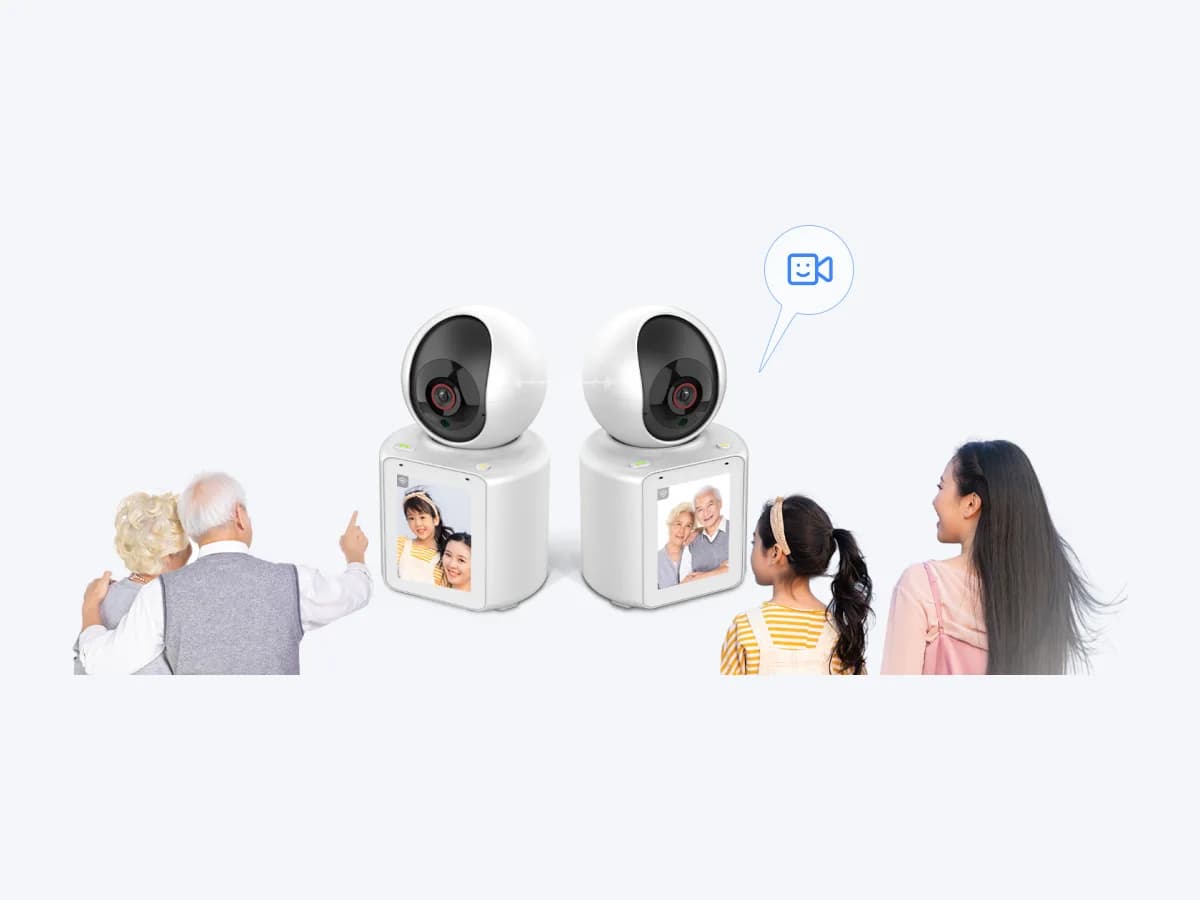
  • Two IM CAM C31 cameras on a video call, with grandparents and a child on screen

    One press, and it's calling

    Call another device or a phone with one press. Call buttons can be set to call Mom or Dad.

    One-press calling

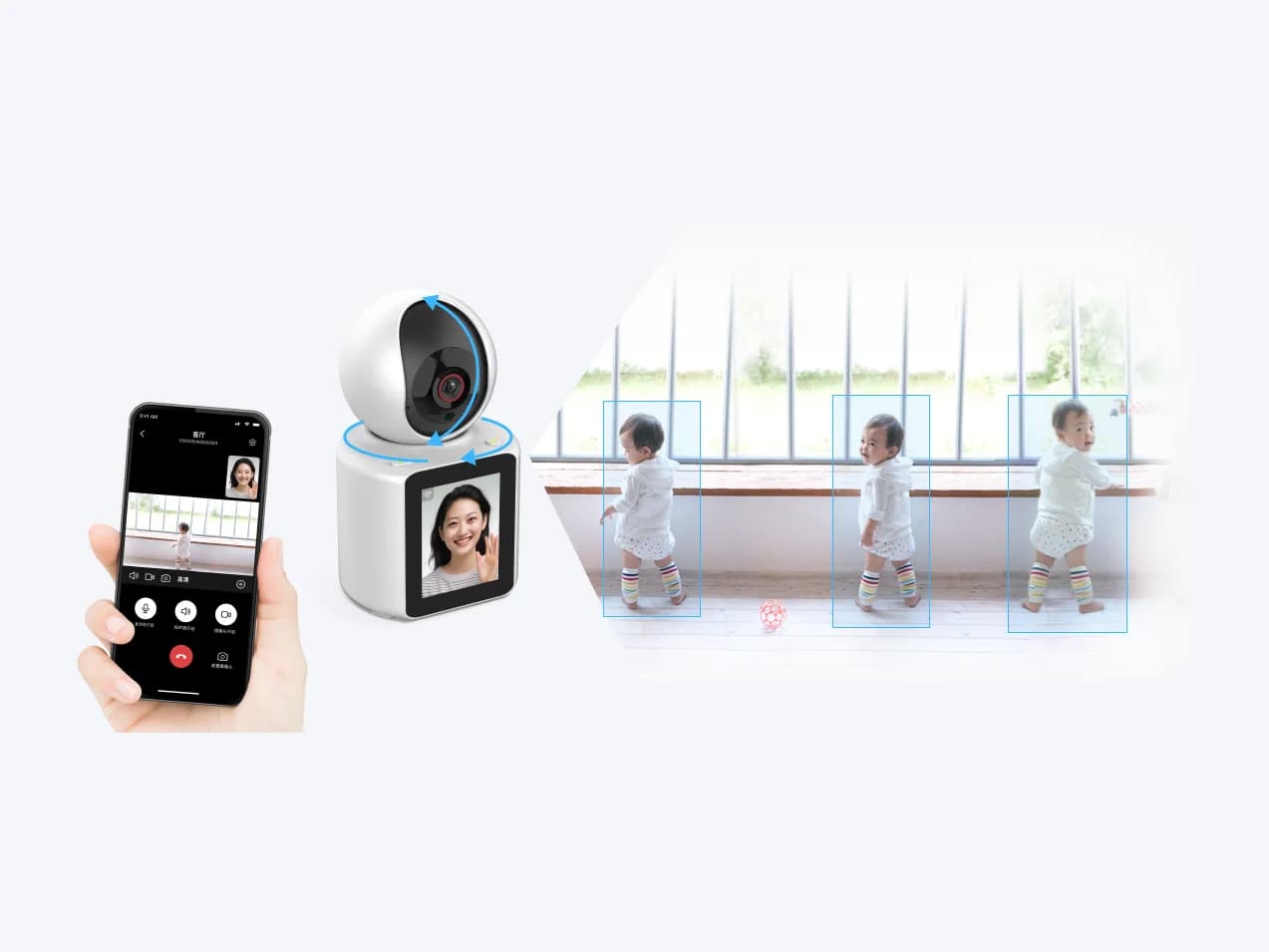
  • A phone on a video call with the IM CAM C31, which tracks a child walking

    You see them, they see you

    Two-way video puts your face on the device at home, and the lens follows people as they move.

    Video calls · Motion following

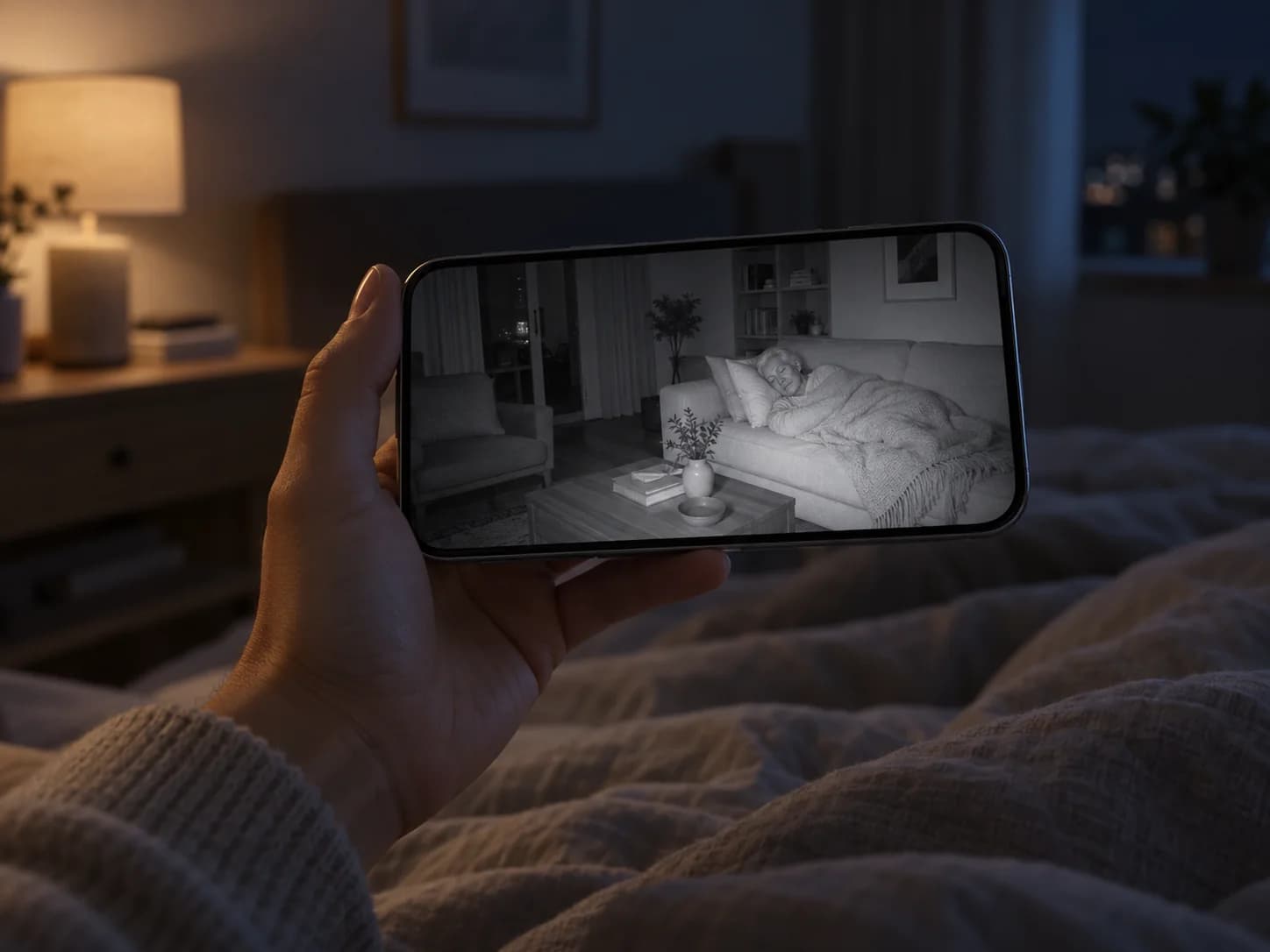
  • Checking the night-vision view on a phone

    Lights off, still clear

    Infrared lighting shows the room at night without waking anyone.

    HD infrared night vision

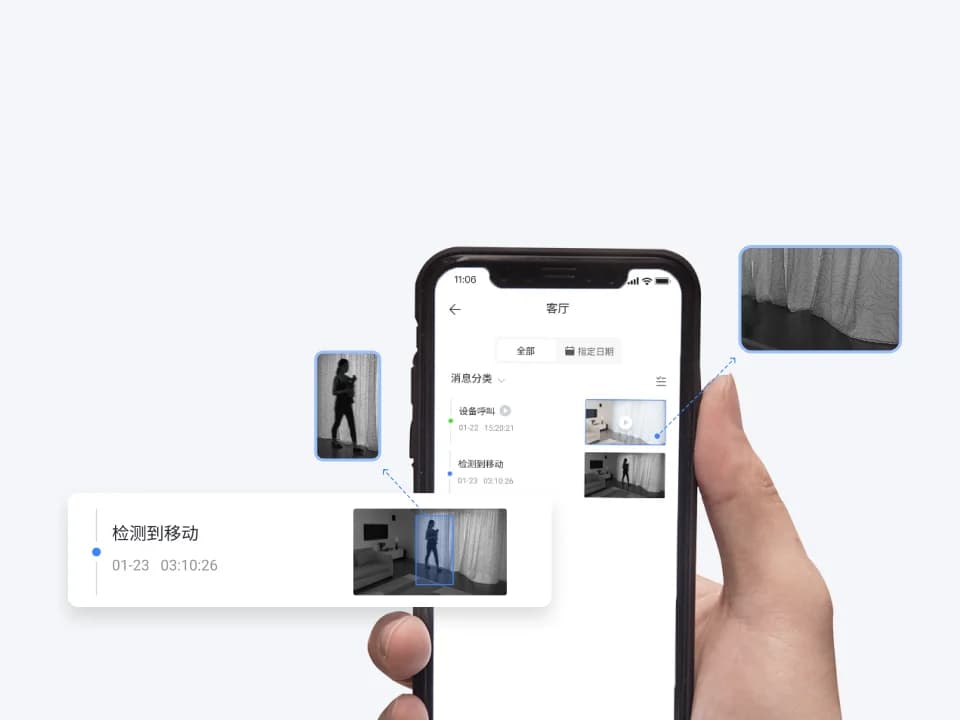
  • The IM CAM app showing a motion-detected alert

    Something moves, you know

    Smart human detection: when someone moves in view, your phone gets an alarm alert right away.

    Human detection · Alarm alerts

Overview

The IM CAM C31 is a two-way video-call smart camera with a screen, built to keep you in touch and keep watch, anytime, anywhere.

  • One-press calling, two-way video: device to device or device to phone, with one press. Call buttons can be set to call Mom or Dad.
  • Video calls that follow movement: the lens turns to follow a person who moves during a call.
  • Security monitoring and alarm alerts: smart human detection and HD infrared night vision; your phone gets an alert when someone moves.
  • AI behavior analysis: scene-based alerts and intrusion alarms.
  • Encryption: 3DES and AES, with iOS, Android and web management.

Specifications

Model
C31 / C30
Resolution
1080p
Connectivity
2.4 GHz Wi-Fi
Night vision
HD infrared
Detection
Human detection, AI behavior analysis
Encryption
3DES, AES
Platforms
iOS, Android, web console

Related videos

All videos
  • Tencent Cloud WeCall (TWeCall) Device Call Demonstration

    When the camera calls a phone, WeChat shows an incoming call alert. You can also call the camera from the WeChat Mini Program.

    Updated Oct 27, 2026
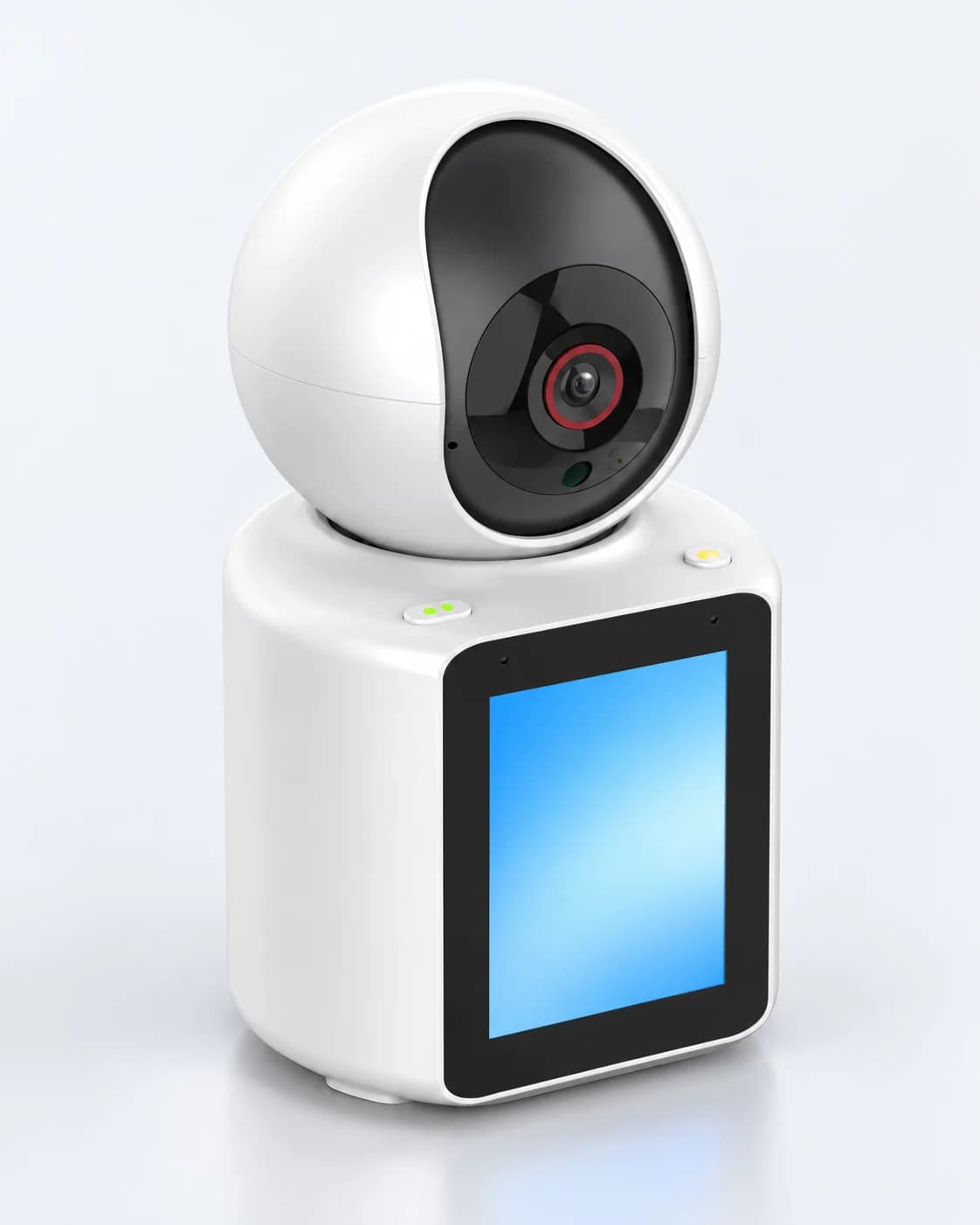
  • Device-to-Device Call Demonstration

    One camera calls another at the press of a button; once answered, the two devices are on a video call.

    Updated Oct 27, 2026

  • Two-Way Video Call Demonstration

    Press the call button on the camera; once the phone answers, both sides are on a video call.

    Updated Oct 27, 2026

Related questions

All questions

What if device binding fails?

If binding fails, try the following:

  1. When entering the Wi-Fi password, choose an available network and enter the correct password.
  2. The device only supports 2.4 GHz networks. Do not choose a 5 GHz network.
  3. Make sure the Wi-Fi network you set up can reach the internet.

What if Bluetooth can't find the device?

If Bluetooth can't find the device, check these two things:
  1. Bluetooth is turned on on your phone.
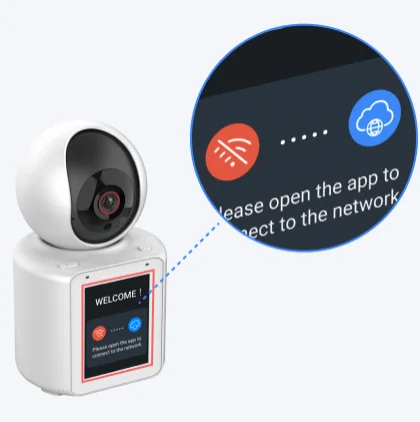
  2. The device screen is in pairing mode, as shown below.

The device screen in pairing mode

What if the device goes offline?

If the device goes offline, check the following:
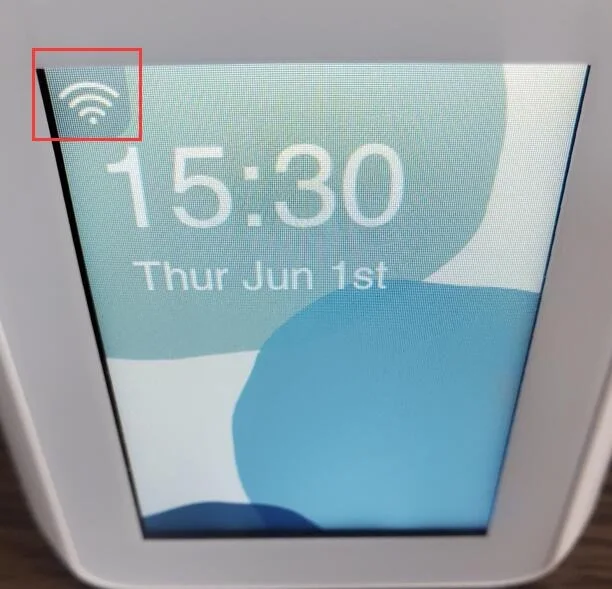
  1. Check that the device has a strong Wi-Fi signal. If the signal is weak, move the device closer to the router.

The Wi-Fi signal icon in the top-left corner of the device screen

  1. Check that the Wi-Fi network the device is on has a stable internet connection.
  2. The device only supports 2.4 GHz networks. Do not choose a 5 GHz network.
  3. Check the power cord and adapter. If they don't match, the device may lose power and disconnect often.

What if device alarm messages aren't pushed?

Missing alarm messages usually means motion detection, alarm notifications in the app, or your phone's notification permission is turned off. Check these three things:
  1. To get motion alarm messages, make sure the device's [Settings] - [Motion Detection Settings] - [Motion Detection Switch] is on in the app. Motion alarms are only pushed when it's on.
  2. If you've allowed the app to send notifications, check that [Device Alarm Notifications] is on under [Messages] - [Settings] (top right) in the app. If it's off, no messages are pushed.
  3. On Android, check under [My] - [Video Call Settings] in the app that notifications are allowed. On iPhone, allow notifications for the app in system settings.